
 English
 Arabic
 Chinese (Simplified)
 Dutch
Dutch French
 German
 Italian
 Portuguese
 Russian
 Spanish
If your Windows PC feels slow, unresponsive, or starts lagging during basic tasks, you’re not alone. Over time, systems accumulate junk files, background processes, and memory-hogging applications that quietly consume valuable resources. One of the most effective ways to tackle this issue is by optimizing your RAM—especially the “hidden” RAM used by inactive or unnecessary processes.
This is where Advanced SystemCare 19 comes in. Designed as a powerful PC cleaner and Windows cleaner, it uses AI-driven tools to clean, optimize, and release memory, helping your system run faster and smoother.
What Causes Windows Lag?
Before jumping into solutions, it’s important to understand why lag happens. Common reasons include:
- Too many startup programs consuming RAM
- Background processes running unnecessarily
- Junk and temporary files clogging storage
- Fragmented or corrupted registry entries
- Outdated drivers and software
All of these factors contribute to hidden RAM usage—memory that’s technically occupied but not actively helping your system.
How Advanced SystemCare 19 Fixes Lag
Advanced SystemCare 19 Free uses AI-powered optimization to detect and eliminate inefficiencies. It identifies RAM being used by idle apps and background services, then frees it for active tasks.
Key highlights include:
- Smart RAM management
- Real-time performance monitoring
- One-click optimization
- Automatic system tuning
Let’s walk through the exact steps to stop Windows lag using this tool.
Step-by-Step Guide to Stop Windows Lag
Step 1: Install and Launch the Software
Download and install Advanced SystemCare 19 Free from the official website. Once installed, open the dashboard to access its optimization tools.
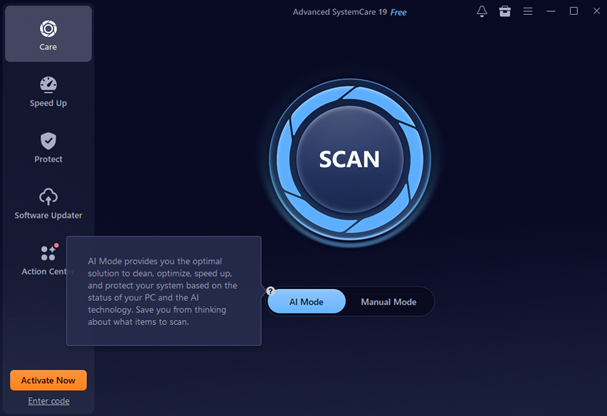
Step 2: Run AI Mode Scan
Start with the AI Mode scan. This intelligent feature analyzes your system and detects:
- Junk files
- Privacy traces
- Invalid registry entries
- Performance issues
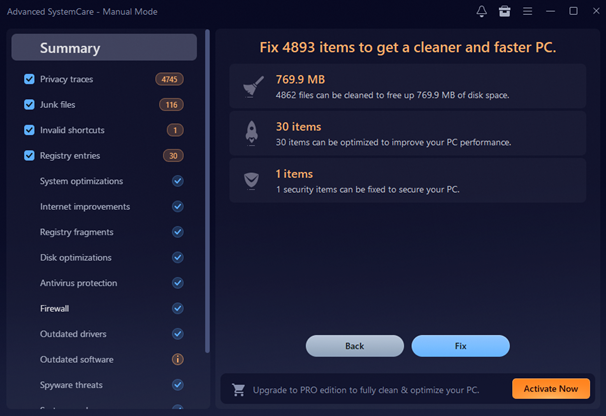
Click “Scan,” then “Fix” to clean everything in one go. This immediately reduces unnecessary load on your system.
Step 3: Remove Junk and Temporary Files
Temporary files pile up over time and consume both storage and memory.
Using the built-in cleaner:
- Delete cache files
- Remove leftover installation files
- Clear browser data
This step alone can significantly reduce lag and improve responsiveness.
Step 4: Deep Clean the Registry
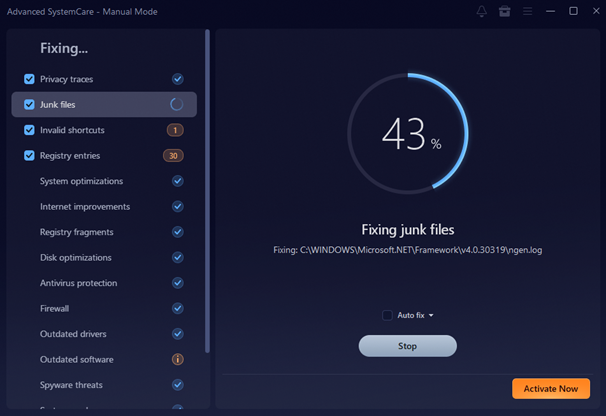
The Windows registry stores system configurations, but over time it becomes cluttered.
Advanced SystemCare performs a deep registry clean by:
- Removing invalid entries
- Fixing broken paths
- Optimizing system structure
A cleaner registry means faster system response and fewer crashes.
Step 5: Manage Startup Items
Too many programs launching at startup is a major cause of slow performance.
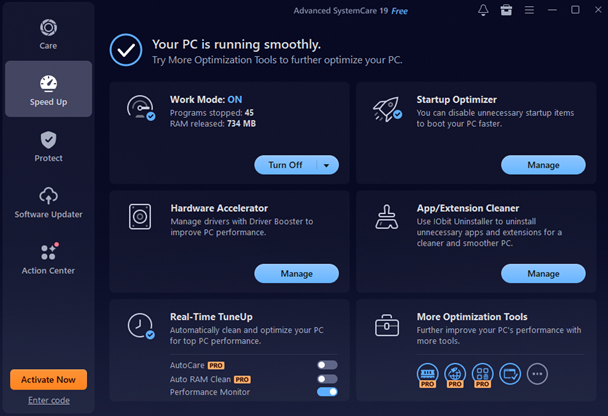
Go to the Speed Up tab and use Startup Optimizer to:
- Disable unnecessary startup apps
- Reduce boot time
- Lower initial RAM usage
This ensures your PC starts fast and stays responsive.
Step 6: Use Turbo Boost for Instant Speed
Turbo Boost is one of the most powerful features in Advanced SystemCare.
Activate it to:
- Stop unnecessary background services
- Disable non-essential apps
- Free up RAM instantly
You can customize Turbo Boost based on your needs, whether for gaming, work, or general use.
Step 7: Release Hidden RAM with Performance Monitor
The Performance Monitor widget gives real-time insights into:
- CPU usage
- RAM usage
- Disk activity
It includes a “Clean RAM” button that lets you instantly release memory with one click. This is perfect when your system suddenly slows down.
Step 8: Enable Smart RAM (Pro Feature)
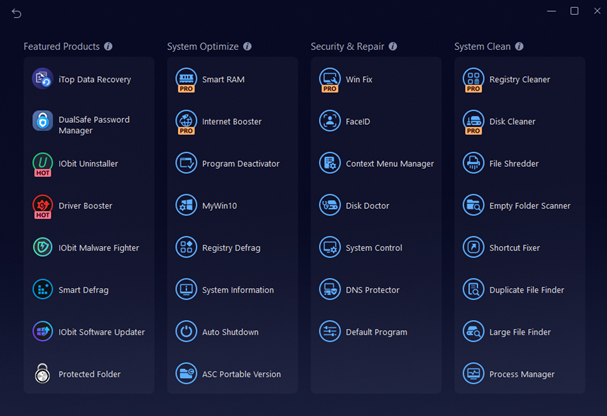
Smart RAM is designed to automatically manage memory.
It works by:
- Monitoring RAM usage continuously
- Detecting idle processes
- Freeing unused memory in real time
While this is a Pro feature, it provides consistent performance improvements without manual intervention.
Step 9: Enable Real-Time TuneUp
Turn on Real-Time TuneUp to keep your system optimized in the background.
This feature:
- Monitors system performance
- Automatically applies fixes
- Prevents slowdowns before they happen
It’s like having a silent system optimizer running 24/7.
Step 10: Update System Drivers with Hardware Accelerator
Outdated drivers can cause lag and compatibility issues.
Use the Hardware Accelerator to:
- Update outdated drivers
- Improve hardware performance
- Enhance system stability
This is especially useful for graphics and network drivers.
Step 11: Use Software Updater to Keep Programs Current
Outdated software can also slow down your system.
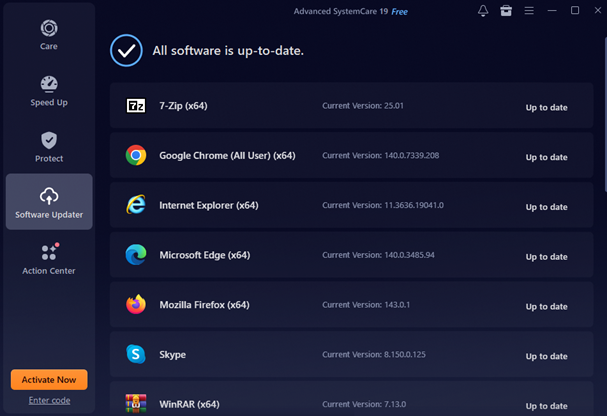
The Software Updater helps you:
- Update essential programs
- Patch security vulnerabilities
- Improve performance
Keeping everything updated ensures smoother operation.
Step 12: Enable AutoCare for Ongoing Maintenance
AutoCare automates system maintenance tasks.
Once enabled, it will:
- Clean junk files regularly
- Optimize system performance
- Maintain privacy protection
This ensures your PC stays fast without manual effort.
Step 13: Perform Final Checks and Restart
After completing all steps:
- Run a final scan
- Apply remaining fixes
- Restart your PC
This helps apply all optimizations and ensures maximum performance improvement.
Key Benefits of Advanced SystemCare 19
Before exploring the benefits, it’s worth noting that this PC cleaner helps eliminate lag by cleaning junk, optimizing RAM, and improving overall system performance efficiently.
- Deep Junk Cleanup: Removes temporary files, cache, and leftover system data that build up over time. This not only frees up valuable disk space but also reduces system clutter, helping your PC run more smoothly, efficiently, and with improved long-term stability.
- Real-Time TuneUp: Continuously monitors system performance in the background and automatically fixes slowdowns. It cleans memory and optimizes processes without interrupting your workflow, ensuring consistent speed and responsiveness throughout your daily tasks.
- Hardware Accelerator: Enhances device performance by updating outdated drivers using Driver Booster technology. This ensures all hardware components function properly, reducing crashes, improving compatibility, and delivering a smoother overall computing experience.
- Startup Optimizer: Detects resource-heavy startup programs and disables unnecessary ones. This significantly reduces boot time and allows your system to start faster while minimizing RAM usage right from startup.
- Turbo Boost: Instantly frees up RAM by shutting down unnecessary background services, delivering a noticeable speed boost during gaming, streaming, or multitasking.
Final Thoughts
Stopping Windows lag doesn’t always require expensive upgrades. With the right tools, you can unlock hidden performance already available in your system. Advanced SystemCare 19 makes this process simple with its AI-powered cleaning, RAM optimization, and real-time performance tools.
By following the steps above—cleaning junk files, managing startup items, and releasing hidden RAM—you can dramatically improve your PC’s speed and responsiveness. If you’re looking for an easy, effective Windows cleaner and PC cleaner, this tool is a solid choice to keep your system running like new.